Using Merge Explorer
Interactive 3D Learning
Merge Explorer transforms learning into an interactive experience by allowing students to explore 3D science and STEM simulations. With over 100 immersive experiences, students can hold a beating heart, dive into the water cycle, explore the solar system, and investigate different ecosystems. By bringing complex concepts to life through exploration and discovery, Merge Explorer helps students build deeper understanding, increase engagement, and make meaningful connections to what they are learning.
In This Article, You Will Learn How To:
- Launch Merge Explorer
- Search and discover topic cards
- Interact with simulations
- Use different embodied interaction modes
- Add Explorer content to your Library
- Share Explorer content with others
Launch Merge Explorer
Visit dashboard.merge3D.ai and sign in. You can select Merge Explorer from the left side menu, or the main home screen where the green arrow is pointing below.
Search and Open an Explorer Topic Card or Activity
- Search for a 3D simulation from within Merge Explorer, or scroll to browse the content. For additional search methods available throughout the Merge 3D Platform, click here.
- Select a topic card by tapping on it.
- Select an activity within the topic card you would like to explore by tapping on it.
- The activity will open in 3D Mode.
Explore a Simulation
Once a simulation has opened, students can:
- Explore the object
- Interact with points of interest
- Read informational labels and descriptions
- Interact with the simulation
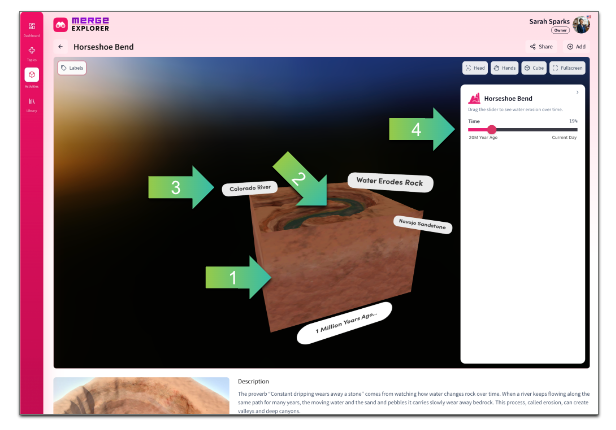 Turn Labels on or off
You can turn labels on or off by tapping the "label" button in the upper left hand corner. See more information here.
Explorer experiences are designed to help students understand concepts that may be difficult to visualize through traditional instruction alone.
Choose an Interaction Mode
Merge Explorer supports multiple ways to interact. Read the instructions below for each.
3D Viewer Mode (Default View)
Explore scenes and simulations directly on your screen using a mouse, trackpad, touchscreen, or interactive display.
Hand Mode
Use hand tracking to naturally interact with content and manipulate elements within a scene. See more by clicking here.
Head Mode
Move your head to look around a scene naturally, creating a more immersive learning experience. See more by clicking here.
Cube Mode
Use a Merge Cube to hold and interact with Explorer experiences in your hands. See more by clicking here.
Adding Explorer Content to your Library/Custom Collections
Adding simulations from Merge Explorer to your library or custom collections makes them easy to find and share later. To save an experience for future use:
- Open the Explorer Topic Card or Activity.
- Click the (+) Add button.
- The activity will be added to your Library or Collections.
The activity will now be available in your Library for quick access later. See more on adding content to your Library here.
Sharing Merge Explorer Content
To easily share content from Merge Explorer, follow the directions below.
- Open the Explorer Topic Card or Activity you would like to share.
- Click the Share button.
-
Choose either:
- Copy Link
- QR Code
- Share the link or QR Code with students or colleagues.
Shared content provides quick access to learning experiences without requiring users to search for them. Click to see more on sharing content here.
Why Use Merge Explorer?
Merge Explorer helps students:
- Explore STEM concepts in ways that would otherwise be inaccessible
- Learn through discovery and interaction
- Develop spatial understanding
- Connect classroom learning to real-world experiences
- Engage with content through multiple embodied interaction methods
Because Merge Explorer runs directly in the browser, students can access immersive 3D learning experiences from virtually any device, making it easier than ever to integrate active, exploration-based learning into everyday instruction.
Now that you've learned how to use Merge Explorer, check out Merge Object Viewer to explore 3D teaching aids or Merge HoloGlobe to investigate Earth, space, geography, and real-world NASA and NOAA data.