Adding Content to Your Library

Adding content to your library allows you to quickly access and organize the content you use most often for lessons, activities, and presentations. In this article, you will learn how to:
- Add Content to your Library
- Remove Content from your Library
Add Content to My Library
- Sign in to the Merge 3D Dashboard at dashboard.merge3D.ai.
- From the Merge 3D Dashboard home page, use the search bar to find content by name. Alternately, you can select any of the web apps from the left-side menu or the Merge 3D home screen to browse.
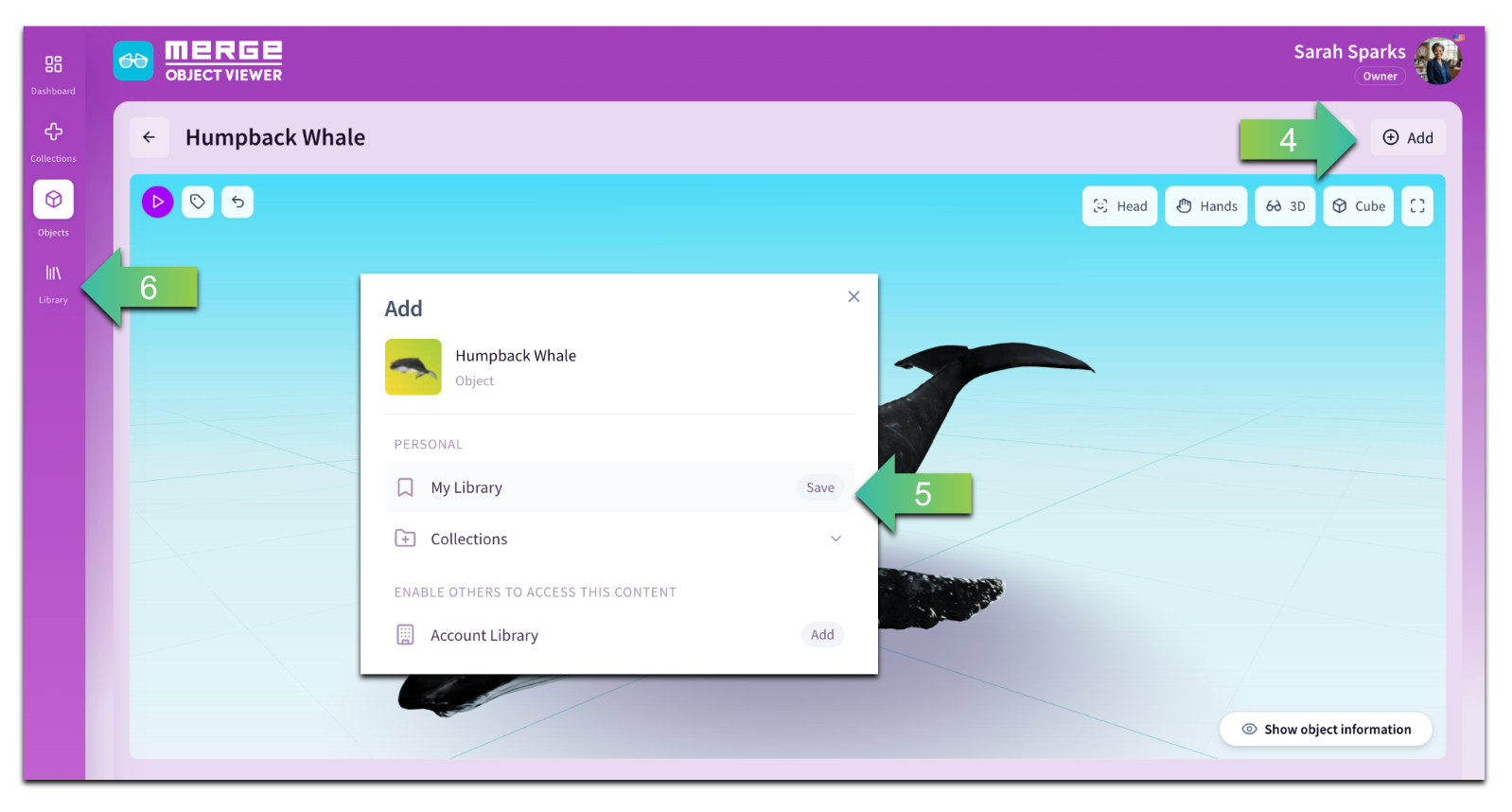
- Select and view the content you would like to add to your library. For this example, I’ve selected the Humpback Whale 3D object from Merge Object Viewer.
- When you are on the object page, click the (+) Add button.
- Choose Add to My Library.
- The object will now appear in your Library for easy access anytime.
How to Remove Content from your Library
- Select the Object you would like to remove from your library.
- Click the (+) Add button.
- Click Saved button to uncheck it and remove the object from your library.
Removing an object from your library does not delete it from the Merge 3D Platform—it simply removes it from your saved content.
Now that you've learned how to add content to your Library, you may want to organize your saved objects into custom collections for specific lessons, units, or student projects.
Learn how to create and manage Custom Collections here.